
Resources · Workflow guide
How to Take an Approved Figma Email Design into Klaviyo: Step-by-Step
For agency owners, CRM leads and production specialists who receive a signed-off Figma email and need it inside Klaviyo as a template the team can keep editing. This guide walks through the production pass in Email-Slicer: preparing the frame, importing it, reviewing structure, exporting to the right Klaviyo account, and checking the result before anything is sent.
Published · Email-Slicer
The seven steps at a glance
- Start with one approved top-level Figma frame.
- Prepare the design so its sections and columns are clear.
- Copy the frame link and import it into Email-Slicer.
- Check and adjust the suggested slices, then confirm them.
- Review each slice: image or text, link and alt text.
- Choose the Klaviyo account and create the template.
- Open the template in Klaviyo and QA it before sending.
Direct Figma import is available to eligible Email-Slicer organizations. Without it, export the approved frame as a JPG or PNG and upload the image instead — steps 4 to 7 are the same.
01Start with one approved top-level Figma frame
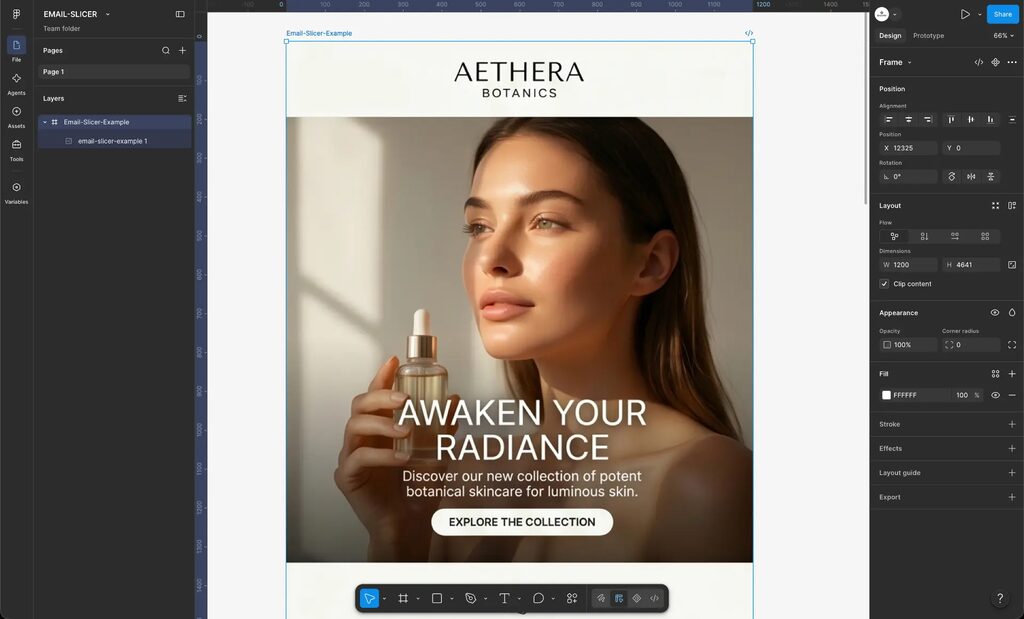
Email-Slicer imports a single top-level Figma frame, so the email must live in one frame — not a group, section or component nested inside another frame. Work from the version the client actually approved.
- Remove annotations, redlines, sticky notes and comment layers from the frame.
- Confirm the Figma account you will connect can open the file and the frame.
- Name the frame clearly so the right one is easy to find later.
02Prepare the design for structure recovery
Structure detection works best when the design reads like an email: consistent width, clear horizontal sections and rows that are obviously columns.
- Keep coherent frame dimensions and a consistent email width.
- Keep live text separate from complex artwork where you want it to stay editable; text baked into imagery is more likely to remain an image slice.
- Decide up front whether any section needs a separate mobile variant.
03Connect Figma and select the frame
Figma import is available in eligible Email-Slicer organizations. An authorized role (Owner or Samurai) connects the Figma design account and makes it available to the team. If your workspace does not show Figma, contact support to discuss evaluation access, or export the frame from Figma as a PNG or JPG and upload it — the rest of this guide applies unchanged.
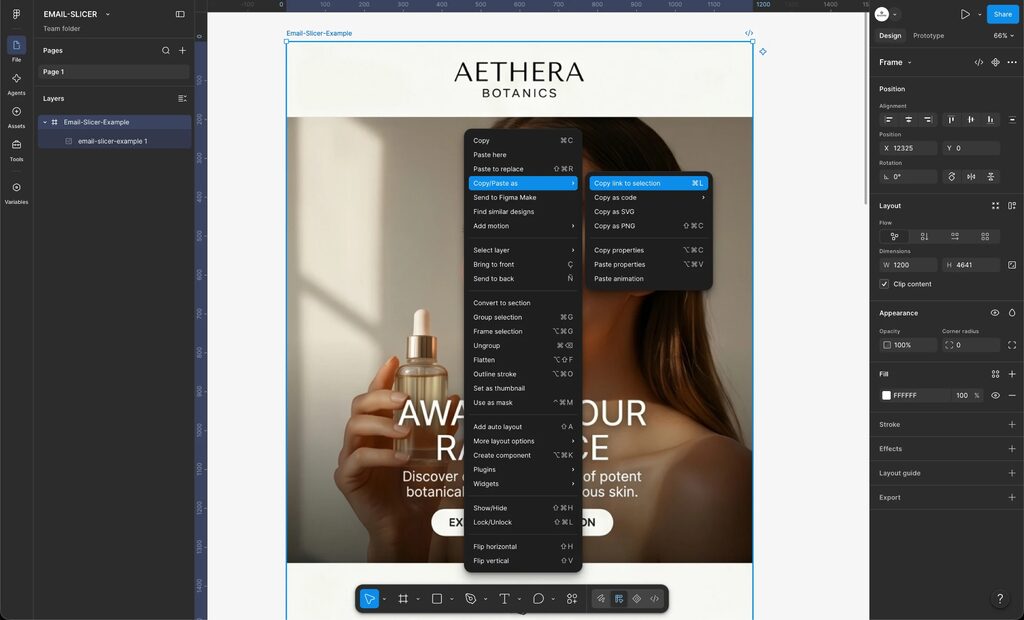
- In Figma, right-click the top-level frame and choose Copy/Paste as → Copy link to selection (⌘L on Mac).
- In Email-Slicer, start a new upload with the connected Figma account and paste the frame link.
- Confirm the selected frame is the approved one.
04Start the project and check the suggested structure
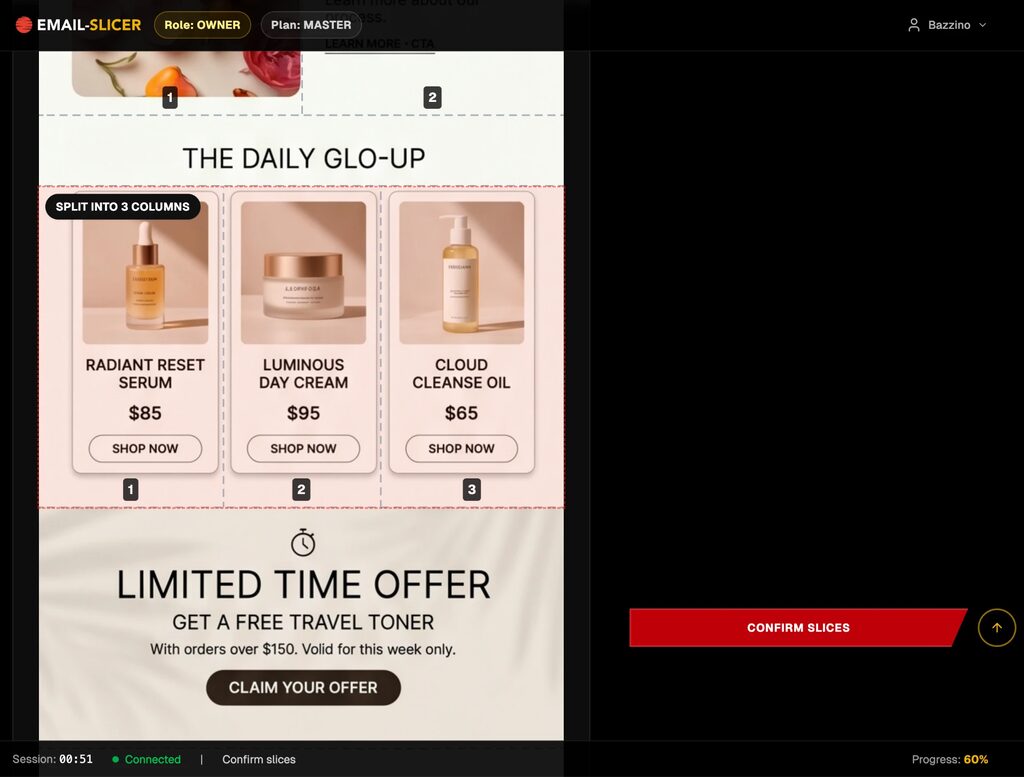
After import, Email-Slicer suggests horizontal guides for sections and identifies rows that should become multiple columns. Treat these as a proposal: move, add or remove guides and adjust column splits, then click Confirm slices.
05Review editable content, links, alt text and mobile
This is where the operator makes production decisions section by section. Not every pixel becomes editable: only eligible text is recovered as editable copy, and design-sensitive regions can stay as image slices.
- Set each slice to Image or Text.
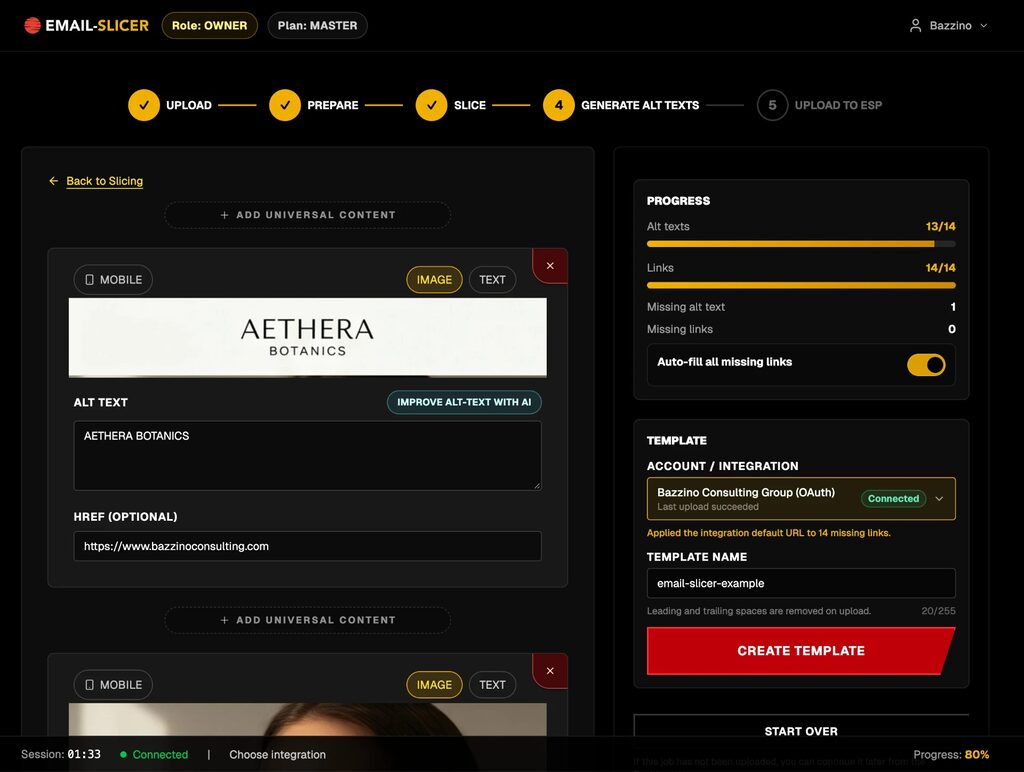
- Write alt text that describes each image slice accurately (Improve alt-text with AI can suggest a draft to review).
- Add the link in Href (optional), or use Auto-fill all missing links to apply the integration's default URL.
- Use Mobile where a slice needs a separate mobile image.
- Check the Progress panel: no missing alt text or links before you export.
06Export to the intended Klaviyo account
Klaviyo is connected through its authorized OAuth flow only when you export — you can do all of the review above without a Klaviyo connection.
- Under Account / Integration, pick the Klaviyo account, connected through OAuth.
- Give it a clear Template name (client, campaign, date).
- Managing several clients? See how agencies route templates to each Klaviyo account.
- Double-check it is the right client's account, then click Create template.
07Open the template in Klaviyo and QA before sending
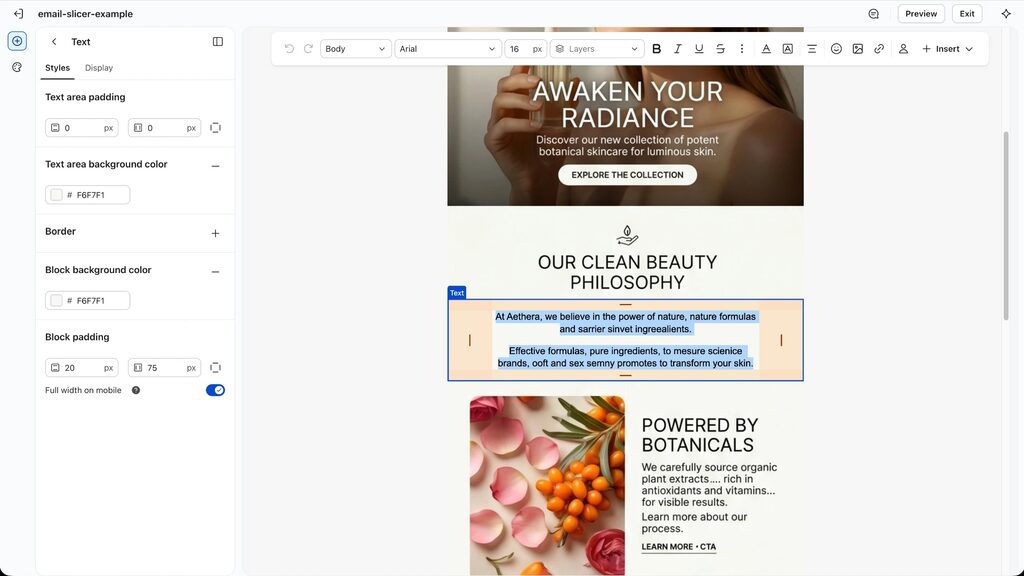
The template opens as a normal Klaviyo email. Run a QA pass there and send a test email before it goes anywhere near a campaign. The table covers the production checks; the full Klaviyo email QA checklist adds the pre-send gate.
| Check | How | Pass when |
|---|---|---|
| Editable text | Click each recovered text block in Klaviyo and edit a word. | Copy edits in place; styling holds. |
| Image slices | Check every visual region renders sharply and in order. | No gaps, seams or missing regions. |
| Links | Click every button, product tile and image link in a test send. | Each opens the intended URL with tracking intact. |
| Alt text | Inspect alt text on each image slice. | Descriptive, accurate, no placeholder text. |
| Mobile | Preview on mobile and in a real phone test send. | Columns stack correctly; mobile variants appear. |
| Account | Confirm the template sits in the intended client's Klaviyo account. | Right account, clear template name. |
Troubleshooting
- I don't see a Figma option.
- Contact support to discuss access for your workspace.
- The frame won't import.
- Check that the link points to a top-level frame and that the connected Figma account can open the file.
- The import failed or stalled.
- Retry the import; if it keeps failing, reconnect the Figma account and try again. Contact support if it persists.
- Some content still looks wrong.
- Adjust guides and region choices in review before export, rather than patching it later in Klaviyo.
- The template went to the wrong Klaviyo account.
- Re-export to the correct account and remove the stray template from the other account.
- The design changed after approval.
- Re-import the updated frame and repeat the review and QA steps — earlier QA no longer applies.
Questions
- Do I need to connect Klaviyo before importing?
- No. Klaviyo is connected only at export.
- Will the whole email be editable in Klaviyo?
- No. Eligible text can be recovered as editable blocks; visual regions can remain image slices with their own links and alt text.
- Can I start from a JPG or PNG instead?
- Yes. The review and export steps are the same. See how it works.
More detail: Email-Slicer for Klaviyo · product documentation


 Ask Google about Email-Slicer