
Email slicing explained
What is an email slicer?
In email production, an email slicer is a tool or workflow that turns a finished email design into smaller sections that can be assembled inside an email service provider. Modern production-grade slicers can go further by recovering usable structure, editable content, links, alt text and responsive sections before export.
Why does email slicing exist?
A finished email design is often approved visually before it exists as production email blocks. The production team then has to translate that visual design into:
- Sections
- Images
- Text
- Links
- Columns
- Desktop and mobile variants
- ESP blocks
Traditional slicing usually divides the flat design into image assets. Production-grade slicing tries to reduce more of the remaining production work — and whatever the method, the finished template still needs a production and pre-send QA pass.
Basic slicing and production-grade slicing
Basic slicing
- Divide the design
- Optimize image assets
- Upload and reassemble
Production-grade slicing
- Interpret structure
- Decide editable versus visual
- Review links and alt text
- Preserve human control
- Produce usable ESP output
These are workflow definitions, not a ranking of specific products.
“Email slicer” can mean different things online.
- Email design slicer
- Turns an approved email design into production sections, assets and structure for an email service provider.
- Python “email slicer”
- A beginner programming exercise that splits an email address into a username and a domain. This is unrelated to email-design production.
- Email parser
- Extracts structured information from incoming email messages or their attachments.
- Email scraper or extractor
- Finds or extracts email addresses, usually for data collection or prospecting.
Email-Slicer belongs to the first category: email design and production. For a worked example, follow an approved Figma frame all the way into Klaviyo.
What should a modern email slicer handle?
- Flat approved designs
- Structure and sections
- Columns
- Editable versus visual content
- Links
- Alt text
- Desktop and mobile image handling
- Human review
- Destination ESP
- Reusable team workflow
How to slice an email
Whether done by hand or with a tool, slicing follows the same steps. Automated slicing proposes the cuts; manual slicing means placing every one yourself in a design tool and uploading each image.
- 01
Start from the approved design
A Figma frame, or a JPG or PNG exported from any design tool, at the final email width.
- 02
Divide it into sections
Place horizontal cuts where sections begin and end, and split product rows into columns.
- 03
Decide editable vs visual
Keep design-sensitive areas as images; turn eligible copy into live text where the tool supports it.
- 04
Add links and alt text
Give every slice and column its destination URL and descriptive alt text.
- 05
Check desktop and mobile
Review how sections and columns behave, including any mobile image variants.
- 06
Export and QA in the ESP
Create the template in the email platform, then test before sending.
Manual vs automated email slicing
Manual slicing gives total control but repeats the same cutting, exporting, compressing and uploading on every email. Automated slicing proposes the structure for you; the useful question is how much you can still review and correct before anything reaches the ESP.
Inputs matter too: some tools accept Figma, some only flat images, some both. On output, a slicer may create image blocks only, or a mix of image and editable text blocks.
What email slicing looks like in Klaviyo
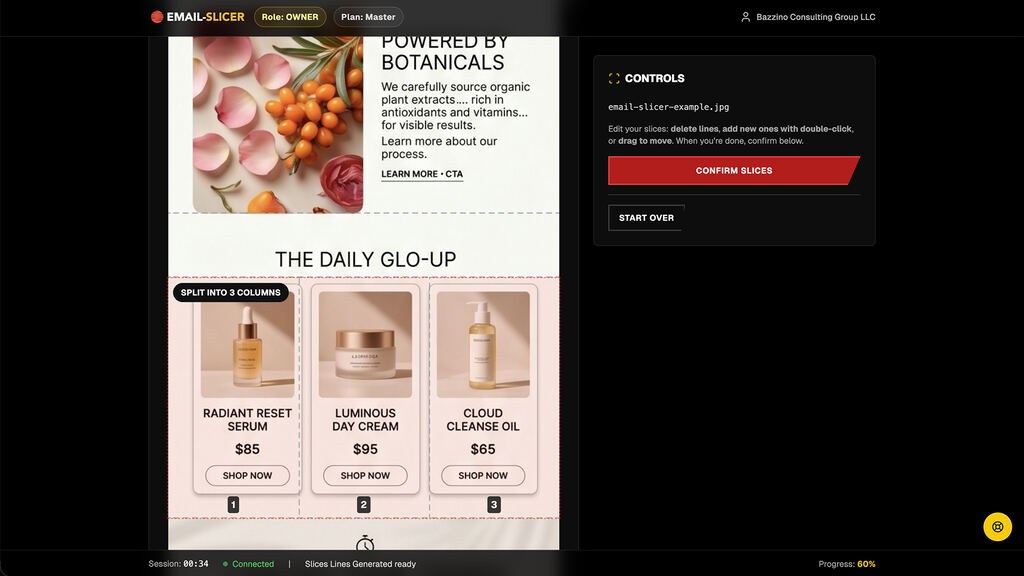 01
01Approved design
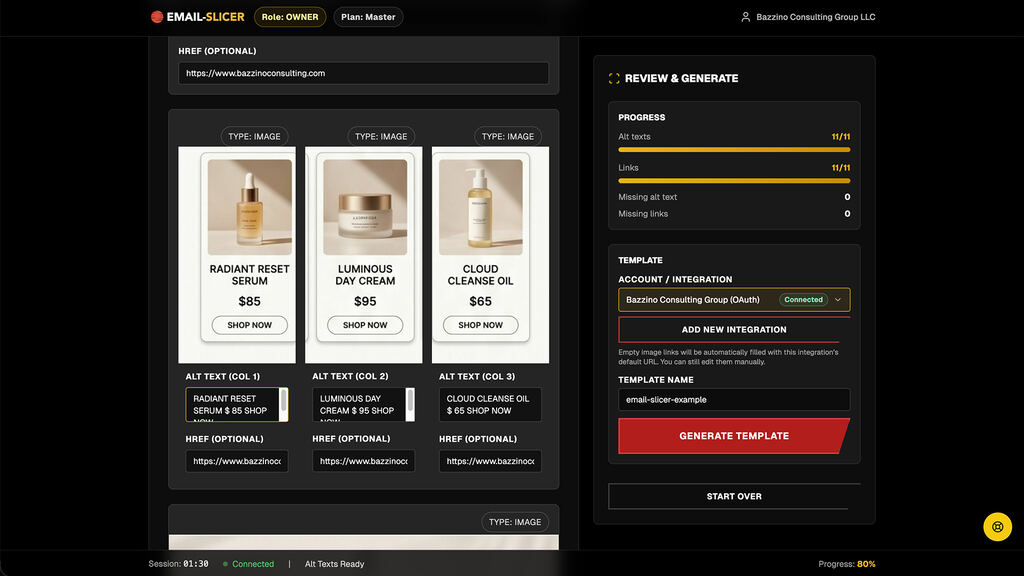 02
02Email-Slicer review
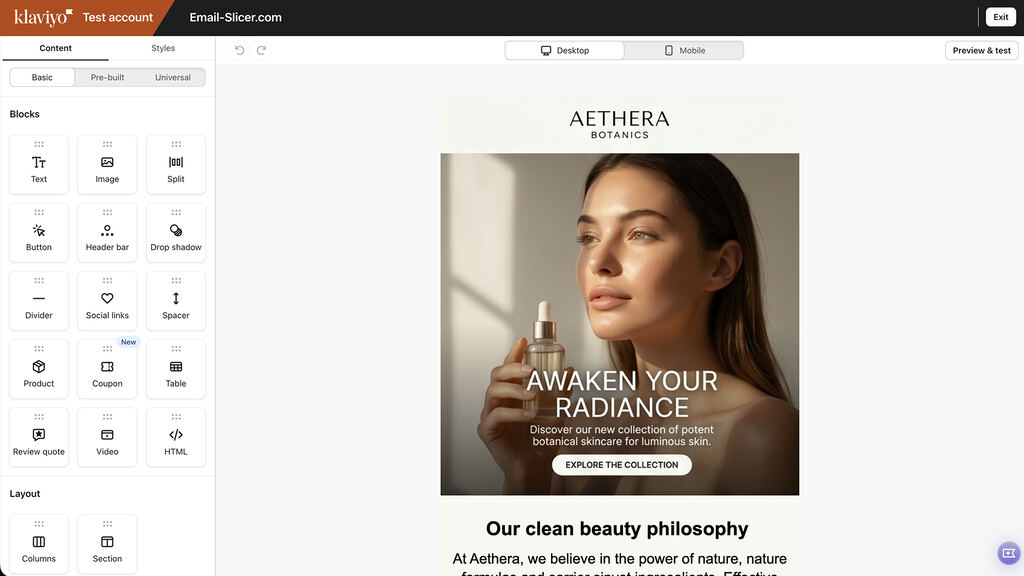 03
03Klaviyo output


Email slicing questions
Ready to see slicing on your own design?
Bring one approved email design and review the detected production structure.
5 free exports · No credit card required


 Ask Google about Email-Slicer