
Canva to Klaviyo
Canva to Klaviyo: turn an approved Canva email design into a Klaviyo template
Export the approved Canva email as JPG or PNG, upload it to Email-Slicer and get a Klaviyo template back: image slices where the design must stay exact, editable Klaviyo text where copy is eligible, with links and alt text reviewed first. No rebuilding the email block by block.

How to move a Canva email design to Klaviyo
Canva is where the design was approved; Klaviyo is where it gets sent. Email-Slicer is the reviewed step in between, so the template arrives with structure, links and alt text already checked.
- 01
Download the approved design
In Canva, open the signed-off email and use Share → Download as PNG or JPG. Download at full width so text stays sharp.
- 02
Upload it to Email-Slicer
Start a project with the image. Email-Slicer proposes horizontal slice guides and marks rows that can be split into columns.
- 03
Review slices, links and text
Adjust guides, confirm which sections become editable Klaviyo text and which stay as images, and add links and alt text.
- 04
Export to Klaviyo
Choose the Klaviyo account connected through OAuth and create the template there for final edits, tests and sending.
Start from your exported Canva design
Create your account, upload the approved JPG or PNG, review the proposed structure, then connect Klaviyo only when you are ready to export.
5 free exports · No credit card required
What happens after you upload the image
Real Email-Slicer and Klaviyo screens, shown with a sample email design.
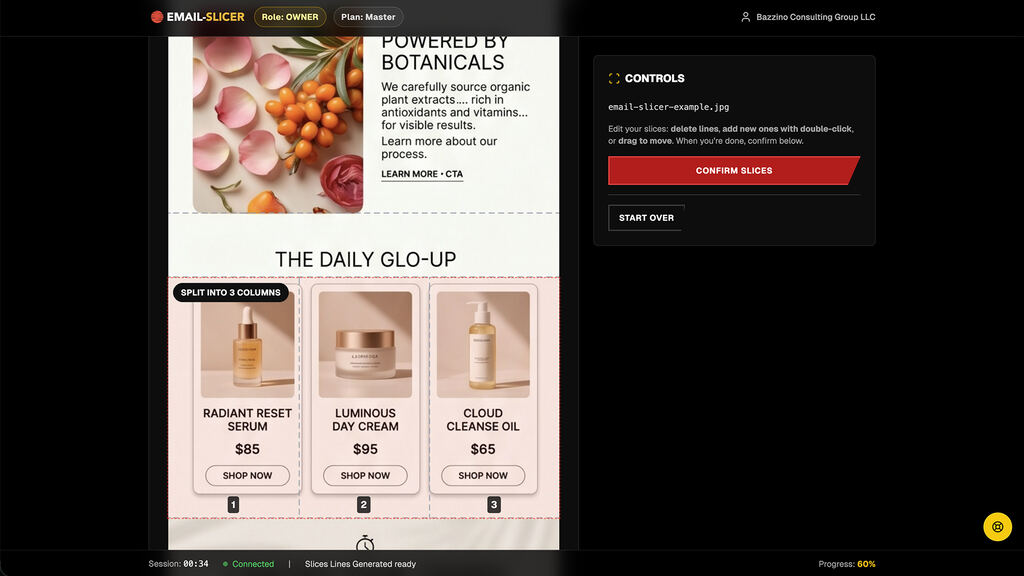
1. The exported design with proposed slice guides you can adjust. 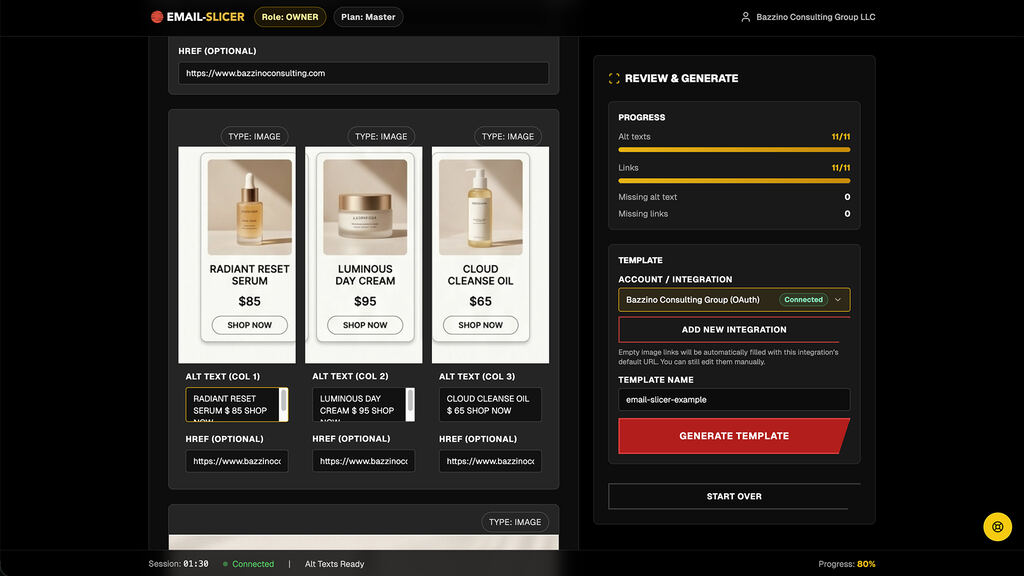
2. Alt text and links reviewed for each column before export. 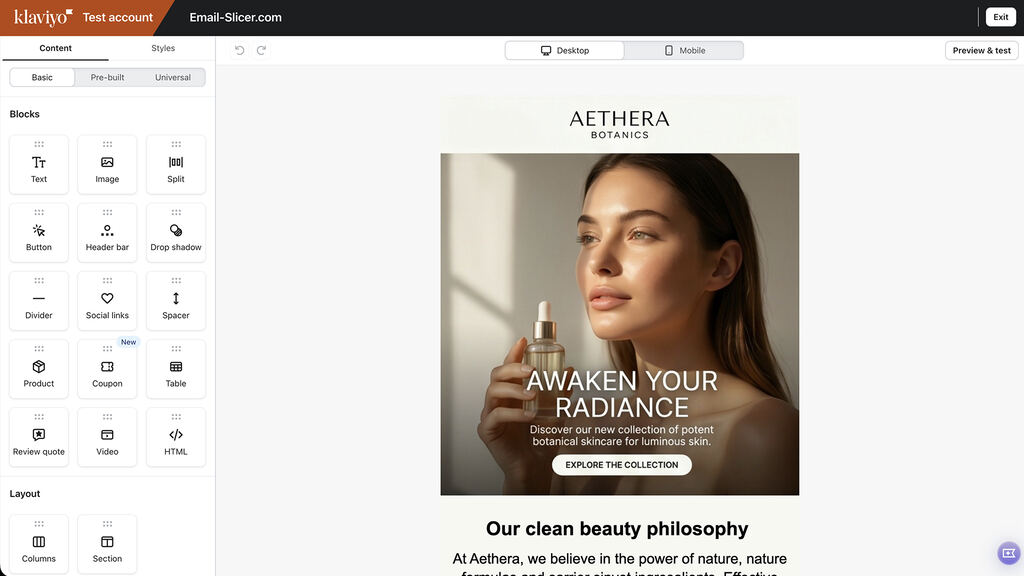
3. The finished template in the Klaviyo account chosen at export.


JPG/PNG upload vs direct Canva import
The JPG/PNG upload is the supported path for everyone: if you can download the approved design as an image, you can turn it into a Klaviyo template.
A direct Canva account import is available only where it is enabled for your account and plan. It saves the download-and-upload step but follows the same review before export. Neither option keeps Canva and Klaviyo in live sync.
Some Canva Email design types limit download formats; you need an image version of the approved design to use Email-Slicer.
What stays editable in Klaviyo?
You decide section by section during review, so not every part of every design becomes editable text.
- Eligible copy converted into real Klaviyo text blocks
- Image slices for sections that must match the Canva design
- Multi-column rows with per-cell images, alt text and links
- The whole template, which opens as a normal Klaviyo email for further edits
Canva export tips for cleaner results
- Use a single-page Canva design at a consistent email width (often 600px, or 1200px for a sharper 2× export).
- Hide comments, guides and draft elements before downloading — everything in the image is analysed.
- Keep copy that should be editable on plain backgrounds, separate from photos and artwork.
Authorized Klaviyo access
Email-Slicer is a published Klaviyo Technology Partner. Teams connect through Klaviyo’s official OAuth authorisation flow instead of sharing private API keys, choose the destination account for each export, and can revoke access from Klaviyo at any time.

Owner (account admin)
Billing, organization, integrations, full access.
Samurai (team manager)
Team management and production oversight.
Ninja (production member)
Production access only—no billing or integrations.
Canva to Klaviyo questions
Export one Canva email and try it.
One approved JPG or PNG is all Email-Slicer needs to start the production pass.
5 free exports · No credit card required


 Ask Google about Email-Slicer